MCP Server
Manage Your ADHD From Any AI Assistant
Capture tasks, see your schedule, and find your next best step - all from ChatGPT, Claude, or any MCP-compatible client. Zero app switching.
Connect Now - It's Free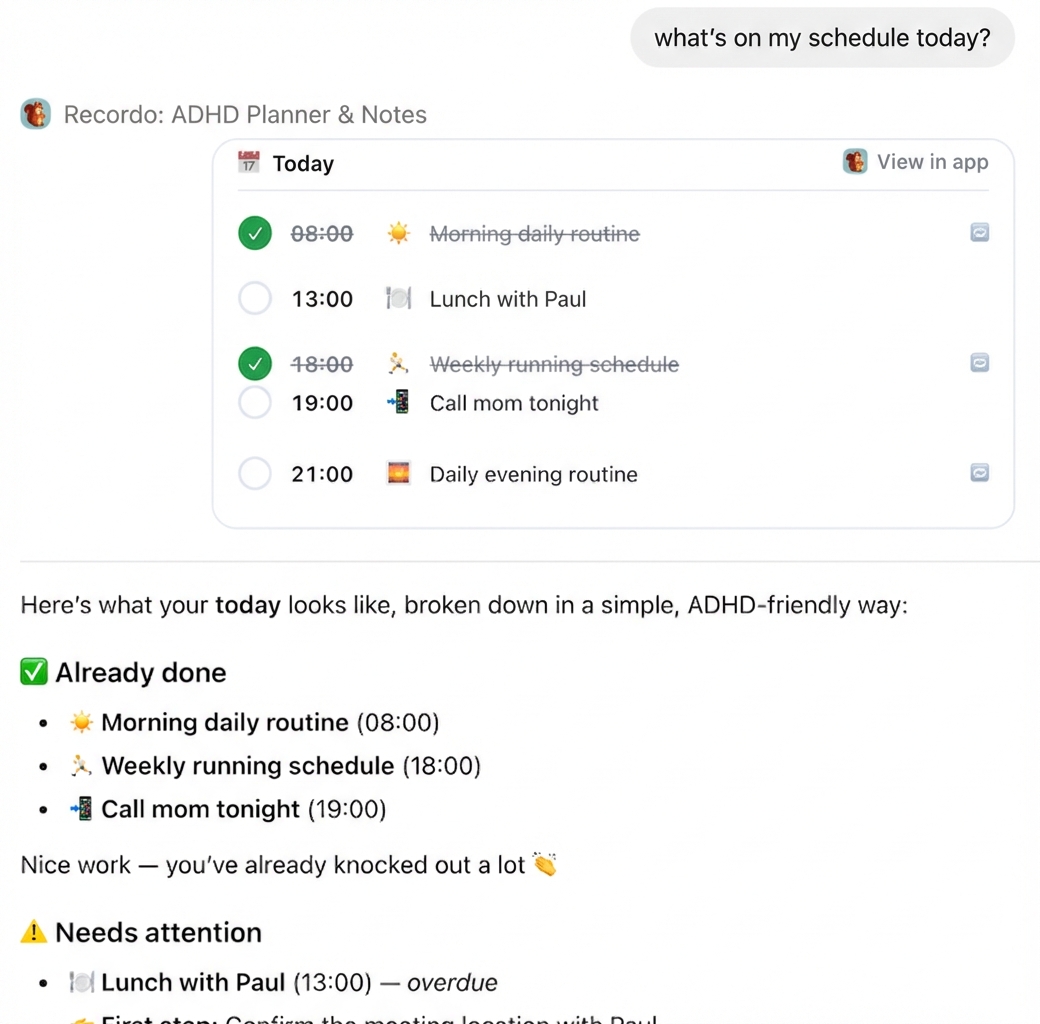
Capture tasks, see your schedule, and find your next best step - all from ChatGPT, Claude, or any MCP-compatible client. Zero app switching.
Connect Now - It's Free
Recordo connects to your AI assistant, bringing ADHD-friendly task management to wherever you're already working.
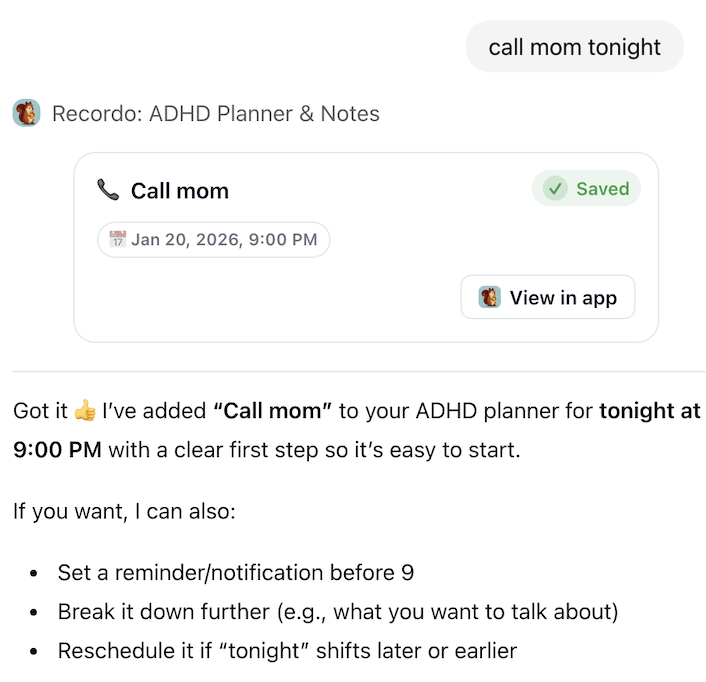
Got a thought? Just tell your AI. "Call mom tonight" or "I need to finish that report" - your task is saved instantly with a clear first step, so starting feels effortless.
Ask "What's on my schedule today?" and get a simple, ADHD-friendly breakdown. See what's done, what needs attention, and what's coming up - no overwhelm, just clarity.
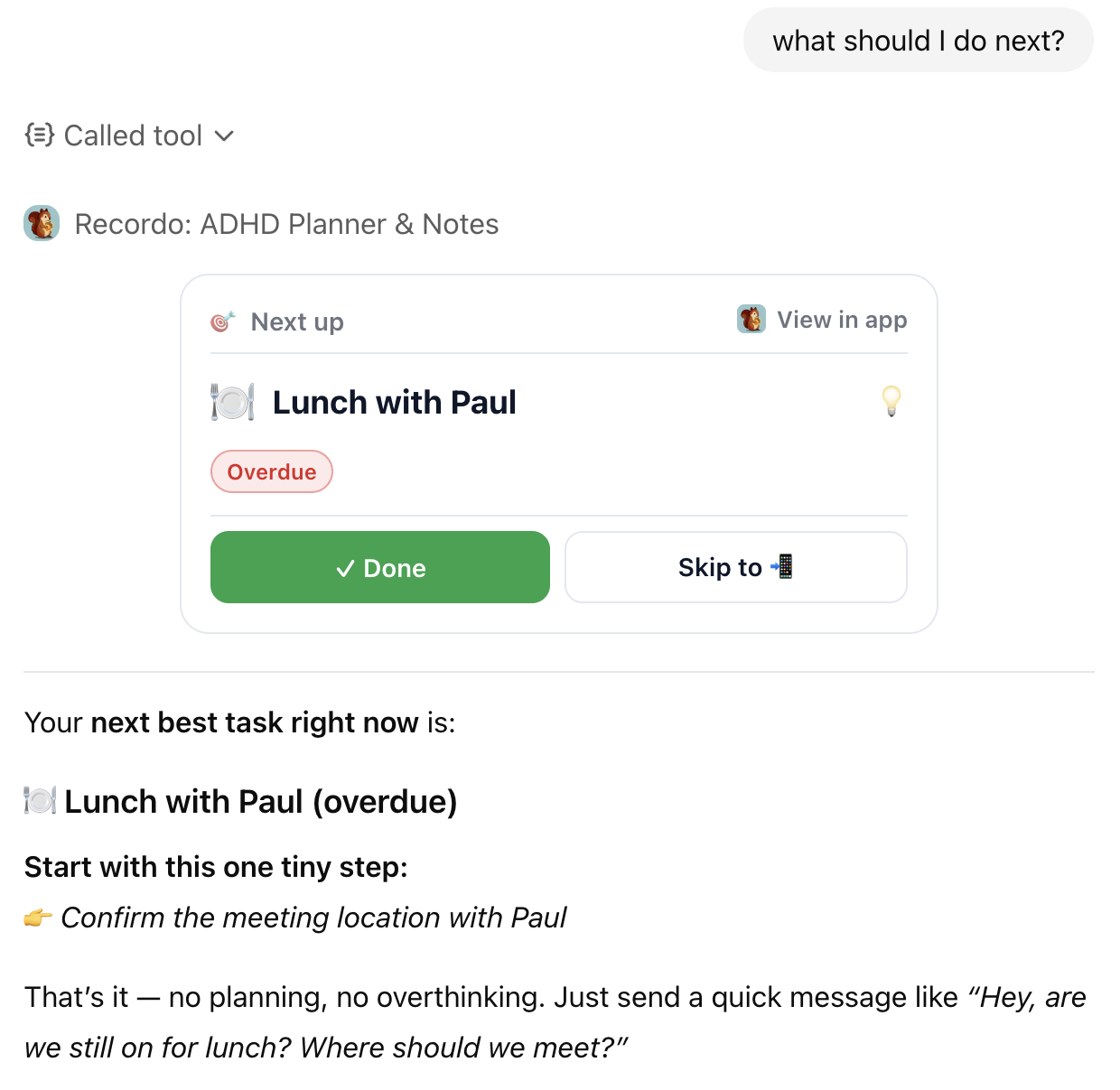
Feeling stuck? Ask "What should I do next?" and get your most important task with one tiny first step. End decision paralysis and just start - that's all it takes.
Recordo MCP Server is completely free. Add the URL to your MCP client and start managing your tasks from any AI assistant.
https://api.recordo.app/api/mcp/adhd/mcp
In ChatGPT, go to Settings → Apps & Connectors → Advanced settings and enable the Developer Mode toggle.
Click "Add new connector" and give it a name like "Recordo".
Paste the MCP server URL from above into the endpoint field.
You'll be prompted to sign in or create a Recordo account to connect your data.
That's it! Capture tasks, check your schedule, and stay focused - all from your AI assistant.
Developer Mode requires ChatGPT Plus, Pro, or Enterprise subscription.
In Claude Desktop, click your profile icon and go to Settings.
Navigate to the Connectors section in the sidebar.
Click "Add custom connector" and paste the MCP server URL above.
You'll be prompted to sign in or create a Recordo account to connect your data.
That's it! Capture tasks, check your schedule, and stay focused - all from your AI assistant.
Custom connectors require Claude Pro, Max, Team, or Enterprise plan in Claude. For detailed MCP documentation, visit modelcontextprotocol.io.
Use the copy button above to copy the server URL to your clipboard.
Follow your MCP client's documentation to add a new remote MCP server using the copied URL.
You'll be prompted to sign in or create a Recordo account to connect your data.
For detailed setup instructions for various MCP clients, visit modelcontextprotocol.io.
Download the app for voice capture, photo scanning, focus mode, and more ADHD-friendly tools.